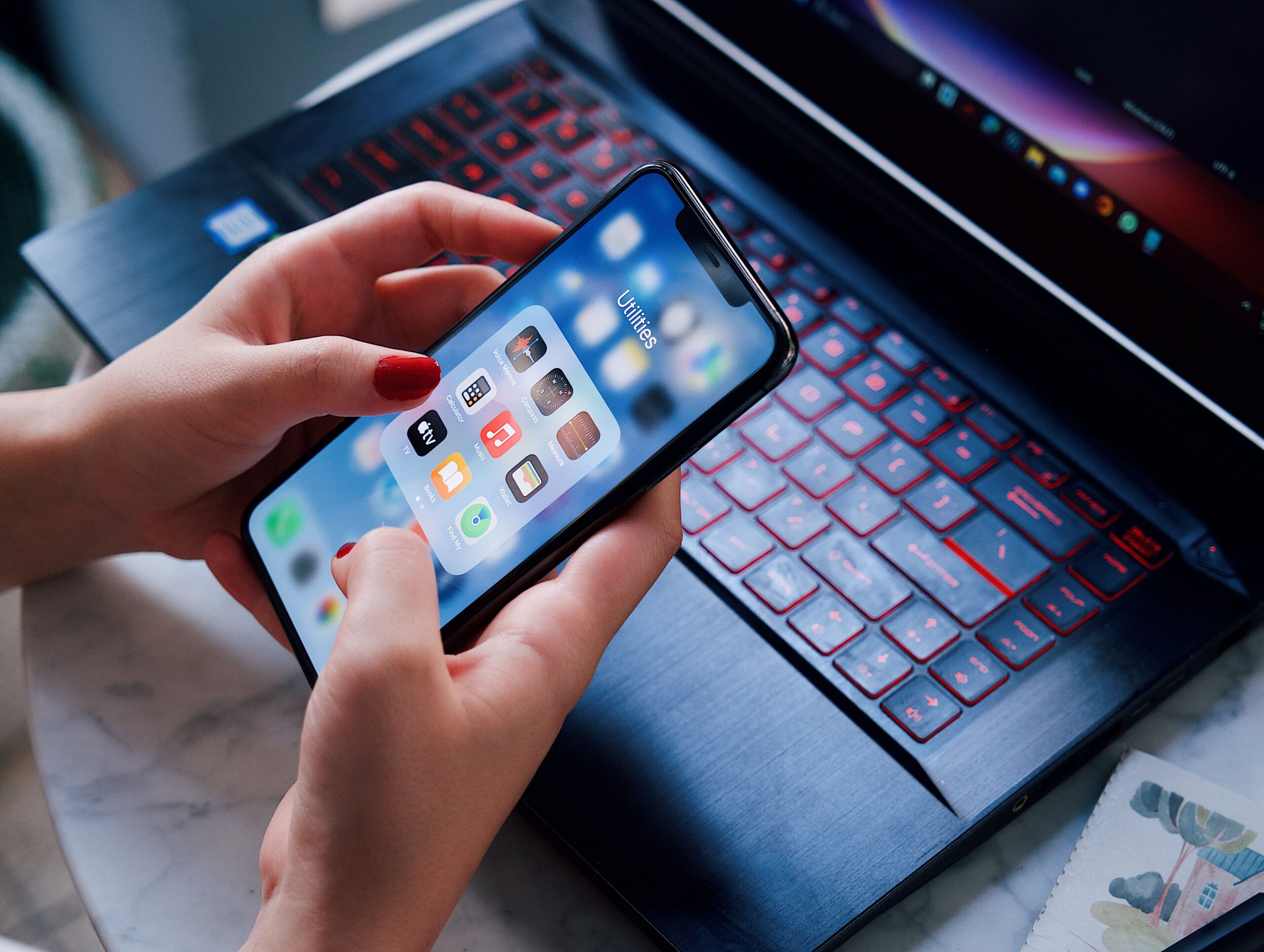
How to Make Your iPhone Run Faster in Minutes
If your iPhone feels slower than it used to, don’t worry. Over time, apps, photos, background processes, and software updates can affect performance. The good news is that you can improve your iPhone’s speed without buying a new device.
Here are some simple methods that can make a noticeable difference.
Restart Your iPhone
A quick restart clears temporary system processes and refreshes your device. If you rarely restart your phone, this simple step may improve performance.
Update to the Latest iOS Version
Apple regularly releases updates that include bug fixes, security improvements, and performance enhancements. Open Settings > General > Software Update and install any available update.
Free Up Storage Space
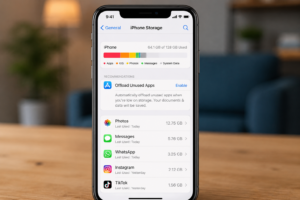
Low storage can slow down your iPhone. Delete unused apps, old videos, and duplicate photos. You can also move files to iCloud if needed.
Close Apps You No Longer Use
Although iOS manages apps efficiently, closing apps that are frozen or not responding can sometimes help improve performance.
Disable Background App Refresh
Many apps continue refreshing in the background even when you’re not using them.
Go to:
Settings > General > Background App Refresh
Turn it off for apps that don’t need constant updates.
Reduce Visual Effects
Animations look nice but require additional system resources.
Open:
Settings > Accessibility > Motion
Enable Reduce Motion to make the interface feel more responsive.
Check Battery Health
An aging battery may reduce your iPhone’s performance.
Go to:
Settings > Battery > Battery Health & Charging
If battery health is very low, replacing the battery may significantly improve speed.
Clear Safari Data
Safari stores browsing data that can build up over time.
Go to:
Settings > Apps > Safari
Choose Clear History and Website Data.
- Remove Unnecessary Widgets
Too many widgets on the Home Screen or Lock Screen can use extra resources. Keep only the ones you actually use.
Reset All Settings (Optional)
If your iPhone is still slow, you can reset system settings without deleting your personal data.
Go to:
Settings > General > Transfer or Reset iPhone > Reset > Reset All Settings
This resets system preferences but keeps your photos, apps, and files.
Most iPhone performance problems can be solved with regular maintenance. Keeping enough free storage, installing software updates, and managing background activity can help your device stay fast for years.
🔗 https://www.iphonelife.com/content/7-little-known-tricks-to-make-your-iphone-faster
Why is my iPhone slow even after updating iOS?
Sometimes indexing, low storage, or battery health can temporarily affect performance after an update.
How much free storage should I keep?
Keeping at least 10–20% of your storage free helps your iPhone perform more smoothly.
Does restarting an iPhone make it faster?
Yes. Restarting clears temporary processes and can improve performance, especially if your phone hasn’t been restarted in a long time. https://dailyhowtoo.com/